Page speed still decides a lot more than people give it credit for Google factors it into rankings through Core Web Vitals, and visitors bounce off slow pages before they even see what you wrote.
W3 Total Cache (W3TC) remains one of the most capable free caching plugins for fixing that, with over a million active installs. The tradeoff is that it’s not a one-click install like some lighter alternatives it gives you six separate caching layers to configure, and getting them wrong can occasionally break more than it fixes.
This guide walks through the current W3 Total Cache settings step by step, so you’re not guessing at toggles you don’t recognize.
Before You Start: Two Things to Check First
Back up your site. Caching plugins occasionally surface conflicts with themes or other plugins that weren’t visible before. A recent backup means you can roll back in seconds if something looks off.
Deactivate any other caching plugin. Running two caching plugins at once (say, W3TC alongside WP Super Cache) causes conflicts more often than it causes double the speed. Remove any existing cache plugin before installing W3TC.
How to Install W3 Total Cache
- From your WordPress dashboard, go to Plugins → Add New Plugin.
- Search for “W3 Total Cache.”
- Find the plugin published by BoldGrid and click Install Now, then Activate.
- Once active, you’ll see a new Performance menu added to your WordPress sidebar that’s where every setting below lives.
The plugin will also offer a setup wizard on first run. It’s fine for a quick baseline, but the manual settings below will get you a more precise, better-tuned result.
How to Configure W3 Total Cache: Section by Section
1. General Settings
Go to Performance → General Settings. This is the master switch panel you’re turning modules on or off here before diving into each one’s details.
Enable Page Cache to start. This is the single highest-impact module in the entire plugin, since it stores a fully rendered version of your pages so WordPress doesn’t have to rebuild them from PHP and database queries on every visit.

2. Page Cache
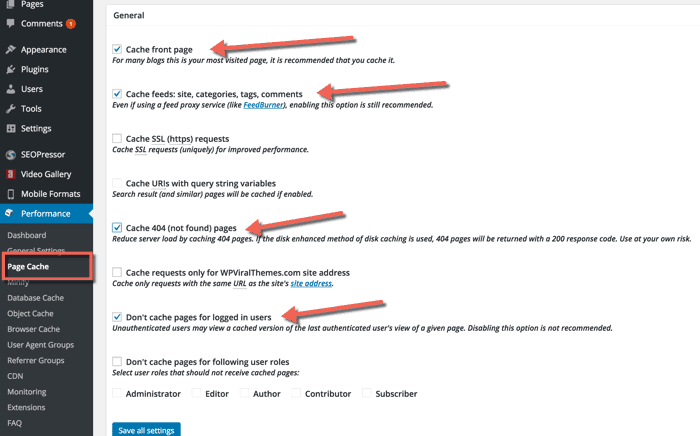
Head to Performance → Page Cache. For the caching method, Disk: Enhanced is the right choice for most shared hosting environments running Apache it stores complete HTML files and serves them without touching PHP at all, which is typically where the biggest speed gains come from. If your host runs Nginx, use Disk: Basic instead to avoid conflicts with .htaccess rules.
The default settings under this tab are sensible for most sites review them, but you generally don’t need to change much beyond the caching method itself.
If your site runs a live news ticker or trending widget, our guide to the best WordPress news plugins covers the options worth pairing with a solid caching setup
3. Minify
Under Performance → Minify, enable minification and set Minify Mode to Auto. This strips unnecessary whitespace from your HTML, CSS, and JavaScript files, which shrinks page size and speeds up load time.
One caution here: minification occasionally breaks CSS or JavaScript on sites with heavily customized themes. If you notice layout glitches or broken functionality after enabling it, that’s usually the culprit either switch Minify Mode to Manual and add files individually, or disable minification for the specific files causing the issue.
If you’re not using a CDN, disable “Automatically upload modified files” under this tab without a CDN, there’s nowhere for those files to upload to.

4. Database Cache
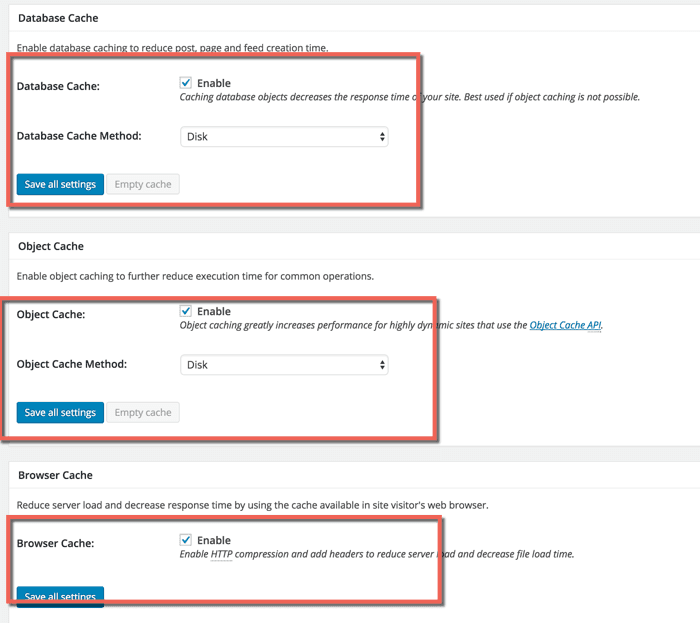
For most small-to-medium WordPress sites on shared hosting, leave Database Cache set to None. Your MySQL server can usually fetch data faster than W3TC’s disk-based database cache can serve it back, so enabling this without a proper caching backend like Redis or Memcached tends to add overhead rather than remove it.

5. Object Cache
Same logic applies here. Object caching stores the results of repeated database queries in memory, which genuinely helps but only if your server has Redis or Memcached available. Most basic shared hosting plans don’t. Use the built-in “Test Object Cache” button to check; if the difference is only a few milliseconds, leave this set to None.
6. Browser Cache
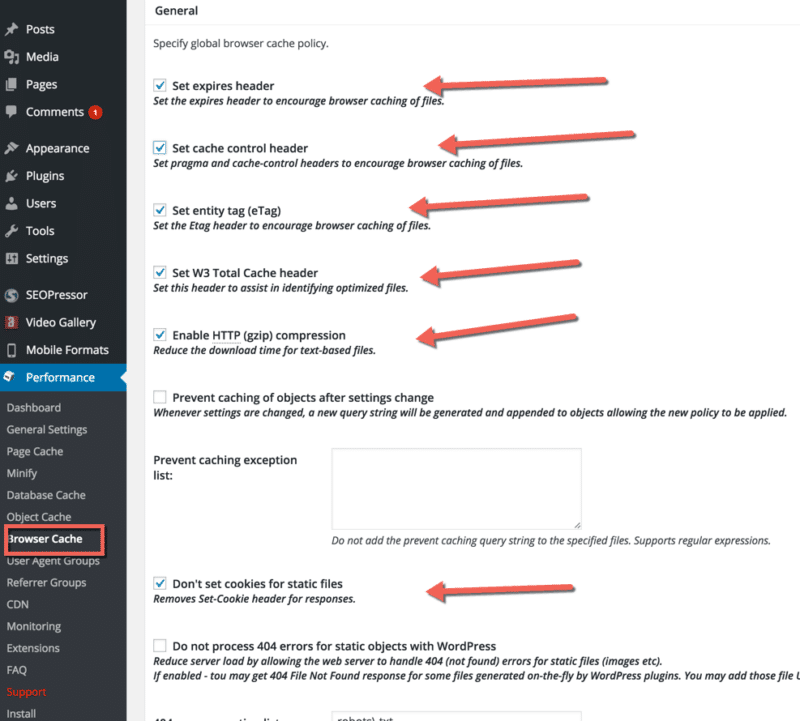
Go to Performance → Browser Cache and enable it. This tells visitors’ browsers to store static files (images, CSS, JS) locally for a set period, so repeat visits load near-instantly without re-downloading assets that haven’t changed. The default settings here work well for nearly every site enable it and move on.
7. CDN
If you’re using a content delivery network (Cloudflare, BunnyCDN, or similar), enable this section and configure your CDN type accordingly. A CDN serves your static assets from servers geographically closer to each visitor, which meaningfully cuts load time for visitors outside your hosting provider’s home region. If you’re not using a CDN yet, skip this section for now it has no effect without one connected.
8. Extensions
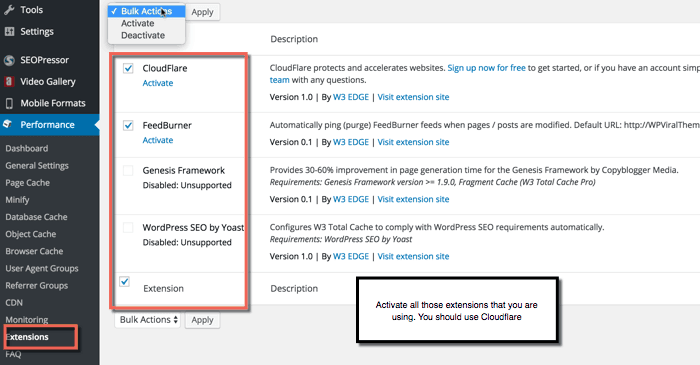
W3TC supports extensions for popular services and plugins, including Cloudflare, Genesis, and Yoast SEO. Check this tab if you’re running any of those enabling the matching extension lets W3TC coordinate with them instead of working around them.
Recommended Starting Settings
If you want a safe, tested baseline rather than tuning every setting from scratch, this combination works well for most shared-hosting WordPress sites:
- Page Cache: On, Disk: Enhanced (or Disk: Basic on Nginx)
- Minify: On, Auto mode
- Database Cache: Off (unless you have Redis/Memcached)
- Object Cache: Off (unless you have Redis/Memcached)
- Browser Cache: On
- CDN: On only if you already have one connected
Use Preview Mode while testing any of these it lets you stage changes and preview them before they go live on your actual site, so you can catch a broken layout before visitors ever see it.
W3 Total Cache vs. WP Rocket and LiteSpeed Cache
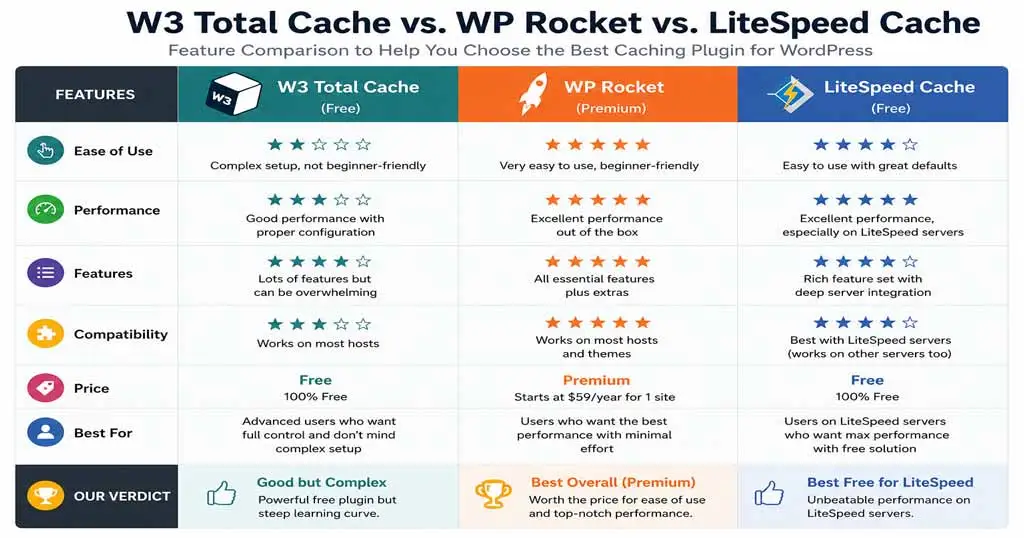
W3TC’s biggest advantage is that it’s free and covers more caching layers than most competitors in one plugin page, object, database, browser, and CDN, all in a single dashboard. The tradeoff is the learning curve; the settings panel isn’t as beginner-friendly as premium alternatives.
If your host runs LiteSpeed servers, LiteSpeed Cache is worth checking first, since it’s purpose-built for that environment and handles a lot of this configuration automatically. WP Rocket is the more common premium pick for anyone who wants strong defaults out of the box without touching the settings much at all.
W3TC remains the right call if you want granular, no-cost control and don’t mind spending twenty minutes getting it right the first time. If you haven’t settled on a plugin stack yet, our best WordPress plugins for 2026 guide compares W3TC against the other caching options side by side.
Once your site is secured, pairing it with a properly configured caching plugin like W3 Total Cache will also help with load times and Core Web Vitals.
Frequently Asked Questions
Is W3 Total Cache still good in 2026?
Yes. It’s a free plugin with over a million active installs and covers more caching layers than most alternatives in a single dashboard. It has a steeper learning curve than premium options like WP Rocket, but the free version is fully functional for most WordPress sites.
What are the best W3 Total Cache settings for shared hosting?
Page Cache on with Disk: Enhanced, Minify on with Auto mode, Browser Cache on, and Database Cache and Object Cache left off unless your host provides Redis or Memcached. This combination avoids the most common configuration mistakes on shared hosting.
Does W3 Total Cache work with Cloudflare?
Yes W3TC includes a dedicated Cloudflare extension. If you’re minifying HTML, CSS, or JS inside W3TC, disable the equivalent minification settings in Cloudflare to avoid the two conflicting with each other.
Can W3 Total Cache break my site?
It can, most commonly through the Minify module conflicting with a heavily customized theme. Use Preview Mode to test changes before they go live, and keep a recent backup so you can roll back quickly if something looks wrong.
Should I use W3 Total Cache or WP Rocket?
W3 Total Cache is the stronger choice if you want free, granular control and don’t mind a slightly steeper setup. WP Rocket is worth the cost if you’d rather have strong defaults applied automatically with minimal configuration.
