A lot of Instagram video advice still floating around online talks about IGTV, 15-second clip limits, and separate “on-feed video” specs, all of which stopped being accurate years ago. Instagram folded IGTV and standalone feed video into Reels back in 2022, and the technical specs have shifted again since then.
If you’re editing videos based on outdated guidance, you’re likely working with the wrong dimensions, the wrong length expectations, and missing safe zones that didn’t exist a few years ago, all of which quietly work against a video that might otherwise perform well.
This guide covers exactly how to edit videos for Instagram the way the platform actually works in 2026, correct specs, the apps worth using, the editing habits that keep the algorithm on your side, and the mistakes that quietly tank a well-shot video.
Whether you’re editing on your phone between meetings or building out a more deliberate content workflow, the fundamentals below apply either way.
Instagram Video Formats in 2026: What Actually Exists Now
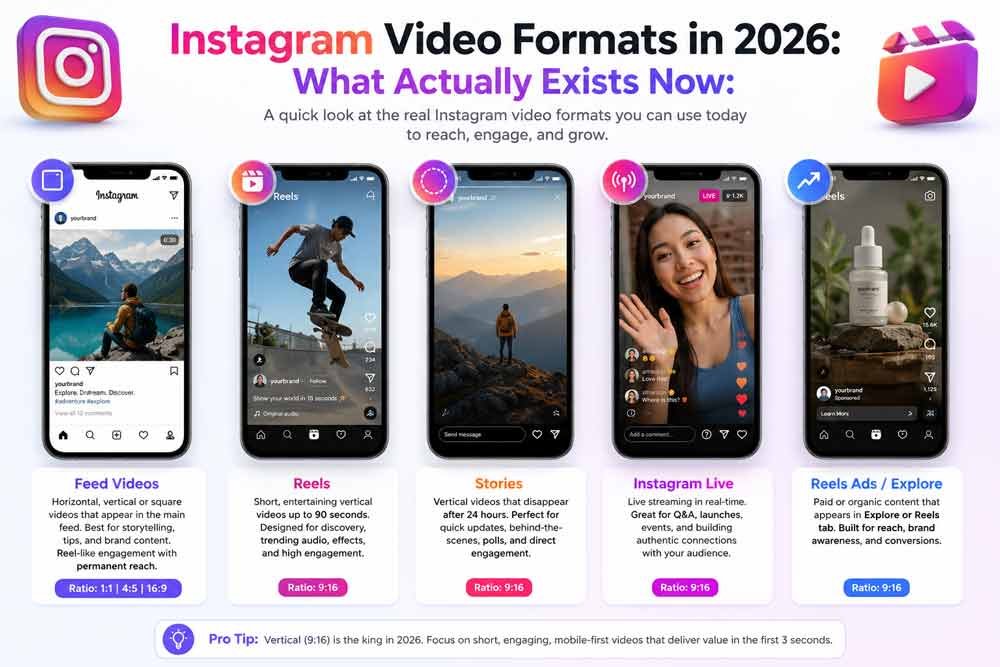
Before getting into editing technique, it helps to clear up what formats even exist today. IGTV is gone, it was discontinued and folded into Reels.
There’s no separate “on-feed video” format anymore either; nearly all video on Instagram now runs through the Reels system, whether it shows up in the main Reels tab, the Explore page, or your regular feed. The one format that’s stayed genuinely separate is Stories, which still has its own specs and disappears after 24 hours.
That means for almost any video you’re editing for Instagram today, you’re editing a Reel, even if it ends up looking like a regular feed post to the viewer.
This single shift is worth internalizing before anything else in this guide, since a lot of outdated advice still treats these as separate formats with separate rules.
Instagram Reels Specs for 2026
Getting the technical specs right matters more than people expect. Upload a video in the wrong dimensions and Instagram will crop it, add black bars, or compress it in a way that makes text blurry and faces awkwardly cut off, and a viewer scrolling fast will swipe away before your content ever gets a fair shot.
Dimensions: 1080 x 1920 pixels, a 9:16 vertical aspect ratio. This is the only format that fills the screen edge to edge with no cropping or letterboxing.
Length: Reels can technically run up to 20 minutes, but Instagram’s own discovery algorithm heavily deprioritizes anything over 3 minutes when showing content to people who don’t already follow you. For reach and discovery, keep Reels under 90 seconds. Save the longer 3-to-20-minute Reels for tutorials, deep dives, and content aimed at your existing followers rather than new audiences.
File format and codec: MP4 with H.264 video compression. H.265 is technically accepted, but Instagram transcodes it back to H.264 anyway, so there’s no real benefit to using it.
Frame rate: 30fps is the standard for most content. Bump up to 60fps for sports, action, or fast-motion footage, anything higher gets dropped back down to 30fps by Instagram’s encoder, so there’s no point exporting above that.
Audio: AAC codec, stereo, at least 128kbps. More than 70% of Instagram viewers watch with sound on, so audio quality isn’t optional, it’s one of the more overlooked reasons a technically well-shot video underperforms.
File size and bitrate: Maximum file size is 4GB. For 1080p video, around 5 Mbps is plenty; capping your export around 8 Mbps gives some buffer without gaining anything from going higher, since Instagram compresses aggressively regardless of what you upload. Exporting at an unnecessarily high bitrate just means a longer upload with no visible quality benefit on the other end.
Safe Zones: Why Your Text Keeps Getting Cut Off
If you’ve ever had a caption or a key visual element get covered by Instagram’s own interface, it’s almost always a safe zone problem, not an editing mistake. Instagram overlays your username, captions, and engagement buttons on top of your video, and those overlays sit in roughly the same spots across most accounts.
Keep important text, faces, and calls-to-action out of the top 220 pixels and bottom 350–450 pixels of your frame. Everything you actually want a viewer to see and read clearly should live in the central safe zone of the frame.
This becomes especially important for tutorial-style content, on-screen text hooks, or any video where you’re layering captions, a great edit can still fail simply because the most important line of text sits exactly where Instagram’s UI covers it.
Most modern editing apps, including the free options covered below, include built-in safe zone guides you can overlay while editing, which removes the guesswork of estimating pixel margins by eye. Turning that guide on before you start placing text is a small habit that saves a re-export later.
The Cover Photo Trap
Your Reel cover is the first thing people see on your profile grid and in the Explore feed before they ever press play, and it’s a common technical mistake.
You upload a full 1080 x 1920 vertical cover, but Instagram’s profile grid crops previews closer to a square or a 3:4 shape rather than showing the full vertical frame. Anything positioned outside that central crop area gets chopped off in the grid view, even though it looked fine in the full Reel.
The fix is straightforward: center your key visual and any cover text inside the middle of the frame, and treat the outer edges as expendable space rather than somewhere you’d put anything important.
If you’re designing covers at scale for multiple posts, building a simple template with the safe crop area marked saves you from re-checking this manually every single time.
Instagram Stories Specs in 2026
Stories remain the one format that’s stayed genuinely separate from Reels, and the specs have changed here too. Instagram now allows uninterrupted Stories up to 60 seconds long, a real upgrade from the old system that chopped anything longer into awkward 15-second segments.
The dimensions stay the same as Reels, 1080 x 1920 pixels, 9:16, since Stories also take up the full screen.
Because Stories disappear after 24 hours, they’re a lower-pressure format for editing. A quick trim, a text overlay, and a sticker or two is usually enough, Stories reward immediacy and authenticity more than the polished pacing a Reel benefits from.
Over-editing a Story often works against you, since it starts to feel like a Reel that’s trying too hard rather than a genuine daily update.
Best Video Editing Apps for Instagram in 2026
You don’t need professional software to produce well-edited Reels, but the right app for you depends on your workflow more than any single feature list.
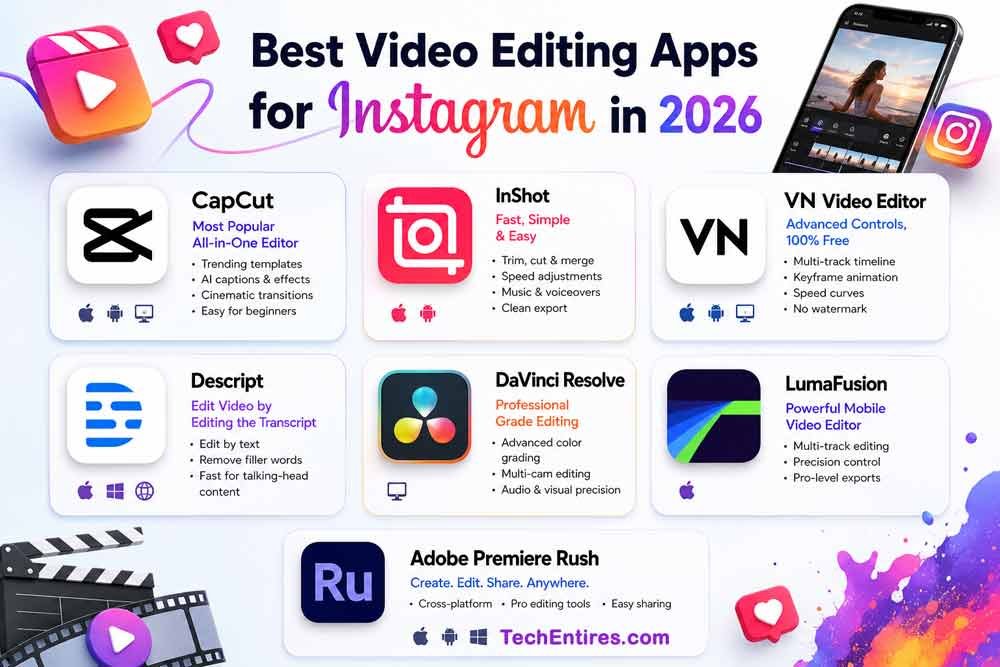
CapCut:
CapCut remains the most widely used free option, and for good reason, it includes trending templates, AI-assisted captioning, motion effects, and cinematic transitions that make quick, polished edits accessible to beginners.
Two things worth knowing before building a full workflow around it in 2026: CapCut’s Pro pricing has reportedly increased, pushing some AI features behind a paywall, and a 2025 terms-of-service change gave its parent company fairly broad rights over uploaded content, worth considering carefully if you’re editing client or brand work rather than personal content.
InShot:
Inshot: is the faster, simpler alternative, trimming, speed adjustments, music, voiceovers, and clean exports without much of a learning curve. It’s a strong pick if your editing sessions happen in short bursts between other tasks rather than dedicated blocks of time.
VN Video Editor:
VN Video Editor: is worth calling out specifically for anyone who wants more control without paying for it, a genuine multi-track timeline, keyframe animation, and speed-curve controls, entirely free with no watermark. For velocity edits and precise transitions, it’s currently one of the strongest free options available on mobile, and it also runs on desktop.
Descript:
Descript stands out for a different reason: it lets you edit video by editing the transcript, which is unusually fast for talking-head content, tutorials, or commentary-style Reels where the spoken word drives the edit.
For more advanced or brand-level production, DaVinci Resolve, LumaFusion, and Adobe Premiere Rush offer the color grading, multi-camera editing, and precision control that mobile-first apps can’t match, worth the steeper learning curve once your production needs outgrow a phone-based workflow.
There’s no single correct answer here, the right app depends on where your bottleneck actually is. If you’re mobile-first and editing in short bursts, CapCut or InShot get you from raw footage to a published Reel fastest.
If you’re already capturing longer-form content and need to pull short clips from it efficiently, a tool built around transcript-based editing or AI-assisted repurposing saves considerably more time than manually scrubbing through a timeline looking for the right moment.
Editing Techniques That Actually Improve Reach
Technical specs get your video seen correctly. What happens in the first few seconds of the edit determines whether anyone keeps watching.
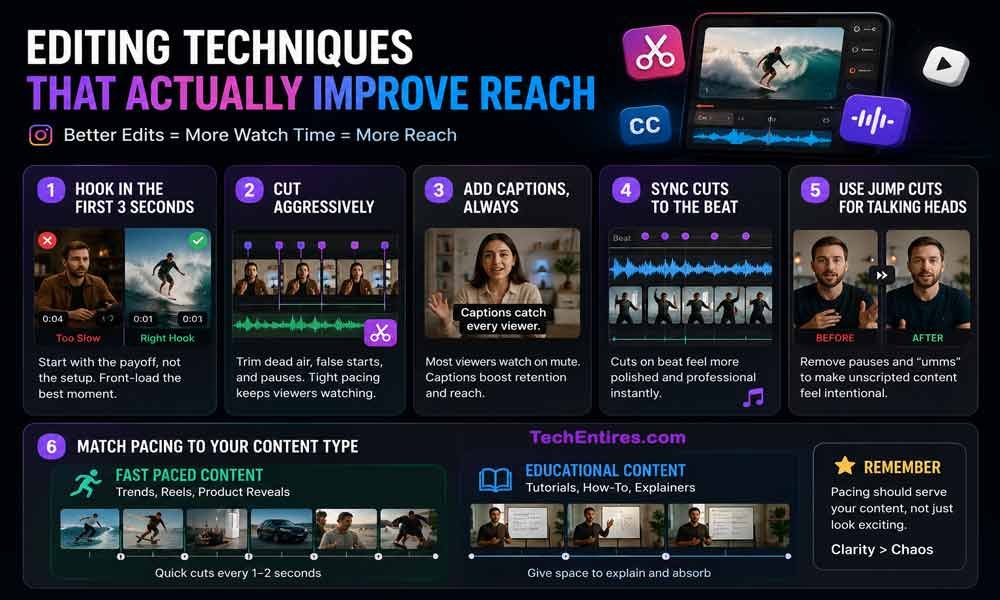
Hook viewers in the first 3 seconds. Instagram’s algorithm weighs watch time and completion rate heavily, so an edit that front-loads the most interesting moment, instead of a slow build-up, keeps more viewers past the point where most people would otherwise scroll away.
If your raw footage opens with an introduction, a setup, or context before the payoff, consider restructuring the edit entirely so the payoff comes first and the context follows for viewers who are already hooked.
Cut aggressively. Trim dead air, false starts, and pauses ruthlessly. A tightly paced edit with quick cuts consistently outperforms a slower one, even when the underlying content is identical, viewers reward the feeling of momentum even when they can’t consciously articulate why one edit felt sharper than another.
Add captions, always. Even though the majority of viewers watch with sound on, a large portion still watch muted in public settings, and burned-in captions catch both audiences without splitting your content into two versions.
Sync cuts to the beat when using music. Edits that land on beat feel noticeably more polished and professional, even using the same raw footage as an unsynced version, most editing apps, including the free ones above, offer auto beat-detection specifically for this, which removes the need to manually scrub the timeline listening for the right moment to cut.
Use jump cuts deliberately for talking-head content. Removing the small pauses and “umms” between sentences tightens pacing without needing complex editing skills, and it’s one of the fastest ways to make unscripted footage feel intentional rather than raw.
Match your pacing to your content type. A fast-paced product reveal or trend-based Reel benefits from quick cuts every second or two, while a genuine tutorial or explainer needs enough breathing room for viewers to actually absorb what’s being shown.
Cutting a how-to video as aggressively as a viral trend Reel often backfires, viewers lose the thread before they get the value they came for, and completion rate drops even though the pacing looked energetic on paper.
Repurposing Long-Form Content: The Waterfall Approach
If you’re already producing longer content, a podcast, a YouTube video, a webinar, re-editing it for Instagram doesn’t mean starting from scratch.
A practical workflow that’s holding up well in 2026 works in three stages: start with a longer master asset shot or recorded in landscape, extract a roughly 60-second “key takeaway” cropped to a portrait format for regular feed content, then pull the single most surprising, funny, or useful 10–15 seconds and crop that tightly to 9:16 with an aggressive text hook in the first few seconds for a standalone Reel aimed at reach.
This turns one recording session into multiple pieces of content instead of one, and it pairs well with the broader content strategy covered in our Instagram growth guide, where building content pillars and staying consistent matters more than constantly producing brand-new material from zero.
The same principle applies to contest content specifically — turning a batch of UGC submissions into a single recap Reel is one of the fastest ways to close out a winning Instagram contest with one more piece of high-engagement content, using the exact same cut-down-from-source technique.
The same underlying footage, cut three different ways for three different goals, gets far more mileage than filming three separate pieces of content from scratch.
Free AI-assisted tools have made the first stage of this process considerably faster, automatically identifying strong moments in a long recording and generating a rough cut to refine, rather than manually scrubbing through 45 minutes of footage looking for the right ten seconds. Several free AI tools now handle this kind of long-form repurposing directly.
Avoiding the Recycled Content Penalty
Instagram has been explicit that it reduces distribution for videos that look recycled from other platforms, especially anything with a visible watermark from TikTok or another app.
If you’re repurposing content across platforms, always export a clean version without another platform’s branding before uploading to Instagram, and adjust pacing and captions specifically for how Instagram’s audience consumes content rather than uploading the exact same file everywhere.
A few extra minutes re-exporting a clean version consistently outperforms the shortcut of uploading the same watermarked file to every platform at once.
This matters even for accounts that don’t think of themselves as cross-posting. Screen recordings, downloaded clips, or content pulled from other sources can carry the same watermark penalty if they’re uploaded without re-editing, so it’s worth checking any imported footage for hidden branding before it goes into your final export.
Instagram Video Editing Checklist for 2026
- Exported at 1080 x 1920 pixels, 9:16 aspect ratio
- Under 90 seconds for reach-focused Reels; longer only for existing-follower content
- MP4 file, H.264 codec, 30fps (60fps only for fast motion)
- Audio in AAC, stereo, at least 128kbps
- Key text, faces, and CTAs kept out of the top 220px and bottom 350–450px safe zones
- Cover image designed with the central grid crop in mind, not the full vertical frame
- Captions burned in for muted viewers
- First 3 seconds re-cut to lead with the strongest moment, not a slow build-up
- No visible watermarks from other platforms on repurposed content
- File size under 4GB, bitrate capped around 8 Mbps
Common Mistakes That Hurt Reach
Uploading the wrong aspect ratio. A 16:9 or square video gets letterboxed with black bars, instantly signaling lower production quality to both viewers and the algorithm.
Ignoring safe zones. A perfectly edited video can still fail if the key text sits exactly where Instagram’s caption bar or username overlay covers it.
Reposting watermarked content directly. Instagram actively reduces distribution on content that looks recycled from another platform without any re-editing.
Designing covers for the full frame instead of the grid crop. A cover that looks great in the Reel can still get cropped awkwardly on the profile grid if key elements aren’t centered.
Skipping captions. A significant share of viewers watch muted, and content without burned-in captions loses that audience entirely within the first few seconds.
Editing based on outdated specs. IGTV, 15-second clip limits, and separate on-feed video dimensions haven’t been accurate for years, following old guidance leads to wasted editing time and content that doesn’t match how Instagram actually displays video today.
A Real-World Scenario
A local fitness studio was posting Reels shot and exported in landscape 16:9, resized down for Instagram with black bars on the top and bottom. Views were low despite decent content, workout tips genuinely worth watching.
After switching to native 9:16 vertical filming, trimming the first three seconds down to lead with the most dynamic movement instead of a slow intro, and adding burned-in captions, the same type of content saw a meaningfully higher completion rate and noticeably more reach to non-followers within a few weeks.
Nothing about the workouts changed. The difference was editing specifically for the format Instagram actually rewards, instead of adapting content built for a different platform.
The studio also discovered their cover images had been getting cropped awkwardly on the profile grid the entire time, since their designer had been centering text for the full 9:16 frame rather than the tighter grid crop.
Fixing that alone noticeably improved their profile’s click-through rate from the Explore page, since visitors could finally read the cover text clearly before deciding whether to tap into a video.
Frequently Asked Questions
What are the correct dimensions for Instagram videos in 2026? 1080 x 1920 pixels with a 9:16 aspect ratio is correct for nearly all Instagram video content today, since IGTV and separate on-feed video specs no longer exist, almost everything runs through the Reels format.
How long can Instagram Reels be in 2026? Reels can technically run up to 20 minutes, but Instagram’s discovery algorithm heavily deprioritizes anything over 3 minutes for viewers who don’t already follow you. Keep Reels under 90 seconds if your goal is reach and discovery.
Does IGTV still exist? No. IGTV was discontinued and folded into Instagram’s Reels system. Any guidance referencing IGTV specs or a separate IGTV upload process is outdated.
What’s the best free video editing app for Instagram? CapCut and VN Video Editor are the strongest free options in 2026. CapCut offers templates and AI-assisted features but has some paywalled premium tools and content-rights terms worth reviewing; VN Video Editor offers a genuine multi-track timeline with no watermark and no subscription requirement, making it a strong pick for anyone who wants more editing control without paying for it.
Why does my Instagram video get cropped or show black bars? This happens when a video isn’t uploaded in the native 9:16 vertical format. Any other aspect ratio, including 16:9 landscape or 1:1 square, gets letterboxed or cropped rather than displayed edge to edge.
Do I need captions on my Instagram videos? Yes. While a majority of viewers watch with sound on, a meaningful share watch muted, especially in public settings, and burned-in captions capture both audiences without needing two separate versions of the same video.
How long can Instagram Stories be in 2026? Instagram now allows uninterrupted Stories up to 60 seconds long, a change from the older system that split anything longer into separate 15-second segments. Dimensions stay the same as Reels at 1080 x 1920 pixels.

Great breakdown of Instagram video specs for 2026. The vertical 9:16 aspect ratio requirement is something many creators overlook when planning content. I recently compared several video editing tools for our tech reviews and found that DaVinci Resolve’s custom export templates work really well for maintaining consistent Instagram formatting across different projects. Curious if you’ve tried any of the newer AI-powered editing tools that auto-crop to different aspect ratios?